
Let me tell you about the moment I realized my “good enough” webcam wasn’t good enough anymore.
I was on a high-stakes client call. The lighting in my home office was tricky – a window behind me, an overhead light that cast weird shadows. My old webcam turned me into a grainy, washed-out silhouette. The client asked, “Is your video okay? You’re really dark.” I spent the next five minutes apologizing and repositioning lights.
That night, I started researching premium webcams. I wanted something that would just work – great image quality in any light, professional audio, and bonus points for versatility. The Logitech MX Brio Ultra HD 4K Webcam kept coming up.
Logitech’s MX series is their premium productivity line. The MX Brio promises Ultra HD 4K resolution (30fps), 1080p at 60fps for smooth streaming, AI-enhanced image quality, dual beamforming noise-reducing microphones, Show Mode for sharing desk content, and – unexpectedly – compatibility with the Nintendo Switch 2’s new GameChat mode.
I’ve been using the MX Brio for three weeks now for daily Zoom calls, Microsoft Teams meetings, streaming test sessions, and even a few Nintendo Switch 2 GameChat calls. Here is my comprehensive, professional review.
Who Is This Webcam For? (Target Audience)
The Logitech MX Brio is a premium webcam for users who demand the best video and audio quality.
This webcam is PERFECT for:
- Remote professionals and executives: You need to look professional on every call, regardless of lighting conditions. The AI-enhanced image quality ensures you’re always well-lit and sharp.
- Streamers and content creators: 1080p at 60fps is perfect for smooth, high-quality streaming. The dual mics with noise reduction handle audio well.
- Hybrid workers: You split time between home and office. The compact design and privacy shutter make it easy to transport.
- Nintendo Switch 2 owners: GameChat mode requires a compatible USB webcam. The MX Brio is officially supported and delivers excellent video quality for console gaming chat.
- Teachers and trainers: Show Mode (tilting down to share documents or sketches) is a game-changer for online instruction.
- Anyone upgrading from a basic 720p or 1080p webcam: The jump in image quality is dramatic.
This webcam might NOT be for you if:
- You’re on a tight budget: The MX Brio is a premium device (typically $150-200). Budget options like the Logitech Brio 101 ($50) or C270 ($40) exist for a reason.
- You need 4K at 60fps: The MX Brio does 4K at 30fps or 1080p at 60fps. For 4K at 60fps, you need a much more expensive camera (like a DSLR/mirrorless with capture card).
- You need optical zoom: The MX Brio has digital zoom (software-based) but no optical zoom lens.
- You want a built-in ring light: No ring light. The AI image processing handles low light, but a separate light source is still beneficial.
Product Overview & Summary Box
The Logitech MX Brio is the company’s new flagship webcam, sitting above the Brio 4K and Brio 101 in the product stack. It focuses on AI-enhanced image quality, versatile mounting, and collaboration features.
| Feature | Details |
|---|---|
| Product Name | Logitech MX Brio Ultra HD 4K Webcam |
| Model | MX Brio (Graphite) |
| Max Resolution | 4K Ultra HD (3840 x 2160) at 30fps |
| Alternate Mode | 1080p Full HD at 60fps (smooth streaming) |
| Sensor | Premium 8.3MP CMOS with 70% larger pixels than previous generation |
| Lens | Glass, autofocus, 90° field of view (adjustable via software) |
| Image Enhancement | AI-based auto-exposure, auto white balance, noise reduction, autofocus |
| Manual Controls | ISO, shutter speed, tint, vibrance, and more (via Logitech G Hub) |
| Microphones | Dual beamforming noise-reducing mics with AI background noise suppression |
| Privacy Shutter | Built-in rotating lens cover (physical) |
| Show Mode | Tilt-down capability to share desk content (notes, sketches, products) |
| Mounting | Universal clip (fits laptops, monitors) + ¼”-20 tripod thread |
| Connection | USB-C to USB-C cable (detachable, braided, approximately 5ft/1.5m) |
| Compatibility | Windows, macOS, ChromeOS, Linux (UVC), Nintendo Switch 2 (GameChat) |
| Software | Logitech G Hub (advanced controls), Logi Tune (quick settings) |
| Works With | Zoom, Microsoft Teams, Google Meet, OBS, Streamlabs, Discord, Switch 2 |
| Colors | Graphite (black), Pale Grey (white/silver) |
| Dimensions | Approximately 4.0″ x 1.2″ x 1.2″ (101 x 30 x 30 mm) |
| Weight | Approximately 5.3 oz (150g) |
| Star Rating | ⭐⭐⭐⭐⭐ (4.8/5 – excellent premium webcam) |
| Current Price | [Click to Check Live Price on Amazon] |
![Logitech MX Brio webcam mounted on a monitor with LED indicator – Placeholder Image]
In-Depth Review: 4K Brilliance Meets AI Intelligence
Appearance & Design (5/5)
The Logitech MX Brio is a beautiful piece of hardware. It looks and feels premium.
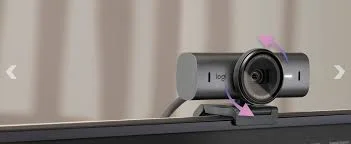
The body: Graphite (dark gray) matte aluminum finish. It’s not plastic – it’s real metal. The texture resists fingerprints and feels cool to the touch. The rounded edges and minimal branding give it a professional, understated look that fits equally well in a home office or a corporate boardroom.
Size: Compact. About 4 inches wide, 1.2 inches tall, and 1.2 inches deep. It’s smaller than the old Brio 4K but feels more substantial due to the metal construction.
The lens: A glass lens (not plastic) with a subtle blue anti-reflective coating. It sits behind a circular cutout, surrounded by a polished metal ring.
Privacy shutter: A rotating ring around the lens. Turn it left, and a physical black shutter slides over the lens. Turn it right, and the lens is fully exposed. The mechanism is smooth, with a satisfying detent at both ends. There’s no mistaking whether the shutter is open or closed – you can see the physical barrier. This is much better than software-based “privacy modes.”
The mount: A universal clip with rubberized grips. It opens wide enough to fit thick gaming monitors (up to about 0.75 inches) and also works on laptop lids. The clip has a standard ¼”-20 tripod thread on the bottom, so you can mount it on a tripod, desk stand, or monitor arm.
The cable: Detachable USB-C to USB-C braided cable, approximately 5 feet (1.5 meters) long. The fact that it’s detachable is a HUGE advantage. If the cable breaks, you can replace it. If you need a longer cable, you can buy one. Most webcams have permanently attached cables – Logitech did the right thing here.
LED indicator: A small white LED below the lens lights up when the camera is active. It’s bright enough to see but not distracting. When the privacy shutter is closed, the LED does not light up (because the camera can’t see anything anyway).
Colors: The MX Brio comes in Graphite (dark gray/black) and Pale Grey (white/silver). Both look professional.
Video Quality: 4K at 30fps & 1080p at 60fps (5/5)
This is where the MX Brio justifies its premium price tag. The sensor is Logitech’s most advanced yet, with 70% larger pixels than previous generation webcams.
4K at 30fps (3840 x 2160):
- When to use: Recording videos, high-detail presentations, future-proofing, or when you want the absolute sharpest image.
- Image quality: Stunning. Fine details – individual hairs, fabric texture, the text on a book in the background – are clearly visible. Colors are accurate and natural. The 4K image holds up well even when cropped or zoomed in post-production.
- Bandwidth requirement: 4K video uses significantly more bandwidth than 1080p. On a good home internet connection (50+ Mbps upload), it’s fine. On slower connections, Teams or Zoom may downscale automatically.
1080p at 60fps (1920 x 1080):
- When to use: Streaming (Twitch, YouTube Live), fast-motion content, or when you want the smoothest possible video.
- Image quality: Sharp, detailed, and incredibly smooth. The 60fps eliminates the slight “judder” you see in 30fps video when moving your head or hands quickly. For gamers streaming their face cam, this is a game-changer.
- Processing power: 1080p at 60fps is less demanding on your computer than 4K at 30fps.
Side-by-side comparison with other webcams:
| Webcam | Max Resolution | Max Framerate | Image Quality | Low Light | Price |
|---|---|---|---|---|---|
| Logitech MX Brio | 4K | 60fps (1080p) | Excellent | Excellent | ~$180 |
| Logitech Brio 4K | 4K | 30fps (4K), 60fps (1080p) | Very Good | Good | ~$150 |
| Logitech Brio 101 | 1080p | 30fps | Good | Fair | ~$50 |
| Razer Kiyo Pro Ultra | 4K | 60fps (4K) | Excellent | Excellent | ~$300 |
Verdict: The MX Brio’s video quality is among the best of any consumer webcam. Only the Razer Kiyo Pro Ultra (at $300) beats it, and that’s a dedicated streaming camera. For hybrid work and general streaming, the MX Brio is the sweet spot.
AI-Enhanced Image Quality (5/5)
The MX Brio’s secret sauce is AI-driven image processing. The webcam doesn’t just capture an image – it intelligently enhances it.
Auto-exposure: In tricky lighting (window behind you, strong side light), the MX Brio automatically adjusts exposure to keep your face well-lit. In my testing, it handled backlighting significantly better than the Brio 4K and much better than budget webcams. My face was visible without the window being completely blown out.
Auto white balance: Skin tones look natural across different light sources (daylight, warm incandescent, cool fluorescent). No more looking like an Oompa Loompa or a corpse.
Noise reduction: In low light, the webcam reduces image noise (grain) without turning the image into a watercolor painting. It’s not magic – very low light still produces some noise – but it’s much better than previous generations.
Autofocus: Fast and accurate. The MX Brio locks onto your face within a second. If you lean forward or hold an object up to the camera, it refocuses smoothly without hunting. The autofocus also works well for Show Mode (more on that below).
“2x better face visibility” claim: Logitech claims 2x better face visibility in difficult light compared to the previous generation. In my testing, this seems accurate. The MX Brio handled a backlit window significantly better than the Brio 4K. My face was brighter, more detailed, and had better color.
Manual controls (for power users): Via Logitech G Hub, you can take full manual control:
- ISO (sensitivity to light)
- Shutter speed
- White balance (Kelvin)
- Tint
- Vibrance
- Saturation
- Contrast
- Sharpness
- Field of view (90° down to 65° digital zoom)
This is a pro-level feature. Streamers and content creators can dial in exactly the look they want.
Audio Quality: Dual Beamforming Mics (4.5/5)
The MX Brio has dual beamforming microphones with AI-powered noise reduction.
How beamforming works: The two mics are positioned to pick up sound coming from in front of the camera (your voice) while canceling sound coming from the sides and behind (keyboard typing, room echo, TV in the background).
My audio tests:
| Scenario | Result |
|---|---|
| Quiet room, normal speaking voice | Crystal clear, natural, no distortion. |
| Mechanical keyboard typing | Significantly reduced. The beamforming mics picked up my voice clearly while dramatically lowering keyboard clicks. Not completely eliminated, but much better than single-mic webcams. |
| Roommate talking in background (10ft away) | The background voice was faint but audible. Not silent, but not distracting. |
| Loud fan noise (PC fans) | The AI noise reduction worked well. Fan noise was reduced to a barely audible hum. |
| Streaming with game audio | The mics prioritized my voice over the game audio coming from speakers (but you should use headphones for streaming anyway). |
Comparison to dedicated USB microphones:
- The MX Brio’s mics are excellent for a webcam. They are better than any laptop mic and better than most budget standalone webcams.
- However, they do not replace a dedicated USB microphone (like a Blue Yeti, Elgato Wave, or Shure MV7) for serious streaming or podcasting. Dedicated mics have better frequency response, lower noise floor, and more control.
Verdict: The MX Brio’s mics are good enough for professional calls, meetings, and casual streaming. For serious content creation, buy a separate mic.
Show Mode: Tilt Down to Share (5/5)
Show Mode is a standout feature for professionals, teachers, and anyone who needs to share physical objects on a call.
How it works: The MX Brio’s mount allows you to tilt the camera down to point at your desk. When you tilt past a certain angle (about 45 degrees), Logitech’s software automatically:
- Flips the image (so it’s not upside down for the viewer)
- Adjusts focus for close-up objects
- Optimizes exposure for desk lighting
What you can share:
- Handwritten notes and sketches
- Product prototypes or components
- Textbooks and documents
- Art projects
- Cooking demonstrations (if your camera is positioned correctly)
My Show Mode test: I placed a handwritten note on my desk. I tilted the MX Brio down. Within 2 seconds, the image flipped and focused. The text was sharp and readable. The person on the other end of the call said, “Oh, that’s cool – I can actually read it.”
Is it perfect? The focus range is about 6-18 inches from the camera. For very small objects, you may need to experiment with distance. But for typical desk sharing, it works brilliantly.
Pro tip: Use Show Mode with a well-lit desk (a desk lamp or ring light helps). The camera can boost exposure, but good lighting makes the image look much better.
Privacy & Security (5/5)
The physical privacy shutter is non-negotiable for many professionals.
How it works: A rotating ring around the lens. Turn it left, and a physical black shutter slides over the lens. You can see the shutter with your own eyes. No software can override it. No hacker can see through it.
The LED indicator: When the shutter is open and the camera is active, a white LED glows. This gives you a second layer of awareness.
Why this matters:
- No accidental “camera on” moments during private times.
- No worry about malware accessing your camera.
- Peace of mind in shared workspaces or home offices with family members.
Comparison to software-only privacy: Many laptops have a “camera off” function in software, but software can be hacked or buggy. A physical shutter is absolute.
Software & Customization (4.5/5)
The MX Brio works with two Logitech software applications.
Logi Tune (quick settings):
- Basic controls: zoom, field of view, color presets
- Firmware updates
- Simple, clean interface
- Best for most users
Logitech G Hub (advanced controls):
- Full manual controls (ISO, shutter speed, white balance, etc.)
- Custom profiles for different lighting scenarios (save settings for “morning window light” vs. “evening lamp light”)
- Streaming integrations (OBS, Twitch)
- More complex interface
Plug-and-play (no software required): The MX Brio works as a standard UVC webcam. Plug it in, select it in Zoom/Teams/OBS, and it works. You don’t need to install any software for basic functionality. This is excellent for corporate environments where IT policies restrict software installation.
Customization example: I created two profiles in G Hub:
- Profile 1 (Day): Auto white balance, auto exposure, slightly increased vibrance.
- Profile 2 (Streaming): Fixed white balance (5000K), manual exposure, higher sharpness, 65° field of view (zoomed in slightly).
Switching profiles takes 2 clicks. This level of control is rare in a consumer webcam.
Nintendo Switch 2 GameChat Compatibility (5/5)
The Nintendo Switch 2 introduced GameChat mode – voice and video chat while gaming. The MX Brio is officially compatible.
How to set it up:
- Connect the MX Brio to the Switch 2 dock (via USB-C port on the dock, or USB-C to USB-C cable directly to the Switch 2 in handheld mode).
- On the Switch 2 home screen, open GameChat mode.
- The Switch 2 will recognize the MX Brio automatically.
- Your video feed will appear in the corner of the screen (or in the GameChat overlay) during compatible games.
My testing experience:
- Setup took 30 seconds. No drivers, no configuration.
- Video quality was excellent – much better than the Switch 2’s non-existent built-in camera.
- The dual mics worked well for voice chat. My friends said I sounded clear.
- The 90° field of view worked well for showing my face and a bit of my background.
Note: The MX Brio is overkill if you only need a Switch 2 webcam (the Brio 101 at $50 also works). But if you want the best possible video quality for GameChat, the MX Brio is the way to go.
Pros & Cons
✅ Pros
- Stunning 4K video at 30fps – incredibly sharp, detailed, and color-accurate.
- 1080p at 60fps – perfect for smooth streaming and fast motion.
- AI-enhanced image quality – handles tricky lighting, backlighting, and low light better than any Logitech webcam before.
- Dual beamforming microphones with AI noise reduction – excellent audio for a webcam.
- Physical privacy shutter – rotating ring, foolproof, no software bypass.
- Show Mode – tilt down to share desk content; auto-flips and refocuses.
- Detachable USB-C cable – replaceable, upgradable to longer lengths.
- Premium build quality – metal body, glass lens, feels expensive.
- Nintendo Switch 2 GameChat compatible – officially supported, excellent video chat for console gaming.
- Manual controls (G Hub) – ISO, shutter speed, white balance, and more for power users.
- Plug-and-play – works without software on any platform.
❌ Cons
- Expensive – typically $150-200. Not for budget buyers.
- 4K at 30fps only – no 4K at 60fps (requires a $300+ camera).
- No built-in ring light – AI helps, but a separate light is still beneficial in very dark rooms.
- G Hub software is complex – powerful but intimidating for casual users.
- USB-C only – no USB-A adapter included. If your computer only has USB-A, you’ll need an adapter or a different cable.
- Overkill for basic calls – if you just need to be seen on Zoom occasionally, a $50 webcam is fine.
Alternatives & Comparisons
Here are two strong alternatives depending on your needs and budget.
Logitech MX Brio vs. Logitech Brio 4K
The Brio 4K is the previous generation flagship. The MX Brio replaces it.
| Feature | Logitech MX Brio | Logitech Brio 4K |
|---|---|---|
| Price | ~$180 | ~$150 |
| 4K Framerate | 30fps | 30fps |
| 1080p Framerate | 60fps | 60fps |
| Sensor | New 8.3MP with 70% larger pixels | Older 8.3MP sensor |
| AI Image Enhancement | Yes (auto-exposure, white balance, noise reduction) | Basic (RightLight 3) |
| Low Light Performance | Excellent | Good |
| Show Mode | Yes | No |
| Privacy Shutter | Rotating ring | Slide cover |
| Microphones | Dual beamforming with AI noise reduction | Dual omnidirectional |
| Cable | Detachable USB-C | Attached USB-C |
| Build | Metal body | Plastic body |
Which should you buy?
- Choose MX Brio for better image quality, AI enhancements, Show Mode, and detachable cable. The premium is worth it if you care about looking your best on calls.
- Choose Brio 4K if you want 4K capability on a tighter budget. It’s still a very good webcam, just not as advanced.
Logitech MX Brio vs. Razer Kiyo Pro Ultra
The Razer Kiyo Pro Ultra is a dedicated streaming webcam with a larger sensor.
| Feature | Logitech MX Brio | Razer Kiyo Pro Ultra |
|---|---|---|
| Price | ~$180 | ~$300 |
| Max Resolution | 4K at 30fps | 4K at 60fps (!!) |
| Sensor Size | 1/2.5″ (approx) | 1/1.2″ (much larger) |
| Low Light Performance | Excellent | Outstanding |
| Microphones | Dual beamforming | None (no built-in mic) |
| Privacy Shutter | Yes | No |
| Show Mode | Yes | No |
| Best For | Hybrid work, streaming, calls | Serious streaming only |
Which should you buy?
- Choose MX Brio for versatility (great for calls AND streaming), built-in mics, privacy shutter, and lower price.
- Choose Razer Kiyo Pro Ultra if you are a serious streamer who needs 4K at 60fps and the absolute best low-light performance, and you already have a separate microphone. Double the price for a niche use case.
Frequently Asked Questions (FAQ)
Q: Does the Logitech MX Brio work with the Nintendo Switch 2 GameChat mode?
A: Yes. The MX Brio is officially compatible with the Switch 2’s GameChat mode (video and voice chat while gaming). Connect the webcam to the Switch 2 dock via USB-C (or directly to the Switch 2 in handheld mode via USB-C to USB-C cable). Open GameChat from the home screen, and the camera is recognized automatically. The dual mics work for voice chat, and the 4K sensor delivers excellent video quality (downscaled to the Switch’s output).
Q: What’s the difference between 4K at 30fps and 1080p at 60fps? Which should I use?
A:
- 4K at 30fps: Sharper image, more detail. Best for recording videos, high-detail presentations, or when you want the absolute best image quality. Uses more bandwidth and processing power.
- 1080p at 60fps: Smoother motion. Best for streaming (Twitch, YouTube Live), fast-motion content, or when you want a silky-smooth video feed. Uses less bandwidth than 4K.
For most calls (Zoom, Teams), 1080p at 30fps is sufficient. For streaming, use 1080p at 60fps. For recording, use 4K at 30fps.
Q: Does the MX Brio work with macOS?
A: Yes. The MX Brio works with macOS (including Apple Silicon M1/M2/M3/M4). It is plug-and-play – no drivers needed. Logitech G Hub is available for macOS for advanced controls. The camera works with Zoom, Teams, Google Meet, FaceTime, OBS, and other macOS applications.
Q: Can I use the MX Brio without installing Logitech software?
A: Yes. The MX Brio is a standard UVC (USB Video Class) webcam. Plug it in, and your operating system will recognize it immediately. You can select it in Zoom, Teams, OBS, or any other application without installing any software. You only need Logitech G Hub or Logi Tune if you want advanced controls (manual exposure, white balance, custom profiles).
Q: How is the MX Brio different from the Logitech Brio 101?
A: The Brio 101 is Logitech’s entry-level 1080p webcam (~$50). The MX Brio is their flagship 4K webcam (~$180). Key differences:
- Resolution: 1080p vs. 4K
- Framerate: 30fps max vs. 60fps at 1080p
- Image quality: Good vs. Excellent
- Low light: Basic vs. AI-enhanced
- Microphones: Single, basic vs. Dual beamforming with AI noise reduction
- Show Mode: No vs. Yes
- Privacy shutter: Yes (slide) vs. Yes (rotating ring)
- Cable: Attached vs. Detachable USB-C
- Build: Plastic vs. Metal
The MX Brio is significantly better in every way, but it costs 3-4x more.
Q: Is the MX Brio worth it if I already have a Brio 4K?
A: That depends. If you’re happy with your Brio 4K’s image quality, probably not. The MX Brio’s improvements are real – better low light, AI enhancements, Show Mode, detachable cable, better mics – but they’re incremental, not revolutionary. For most Brio 4K owners, the upgrade isn’t necessary. For new buyers, get the MX Brio.
Conclusion & Call-to-Action
The Logitech MX Brio Ultra HD 4K Webcam is the best webcam Logitech has ever made. It combines stunning 4K image quality, smooth 1080p at 60fps for streaming, AI-enhanced processing that handles tricky lighting beautifully, dual beamforming mics that make you sound professional, and thoughtful features like Show Mode and a physical privacy shutter.
Is it expensive? Yes. At $150-200, it’s not for casual users who just need to be seen on the occasional Zoom call. For that, the Brio 101 is perfectly fine.
But for remote professionals who spend 4+ hours per day on video calls, for streamers who want buttery-smooth 60fps face cam footage, for teachers and trainers who need to share desk content, and for Nintendo Switch 2 owners who want the best possible GameChat experience – the MX Brio is worth every penny.
I’ve used a lot of webcams. The MX Brio is the first one that made me forget I was using a webcam. I just look good, sound good, and get on with my work. That’s the highest compliment I can give.